One of the reasons I love this plugin so much is because of the amount of freedom the game creator has to modify their shadows or light in the plugin! I applaud the script writer insanely
:kaopride:
Though the lack of a [help page] does make things a bit intimidating, however I'll try and help you learn the way I learned [which is trial by error].
Question: Is it possible to make the Picture layer excluded from being shadowed?
The answer is yes. However you must change a few words in your js file.
Open the Shoralighting.js file with whatever 3rd party application you prefer, and click Ctrl and F at the same time.
This should bring up a find search engine. In the find what box type createUpperLayer and it hit next. This should bring you to a line of code that reads out like this
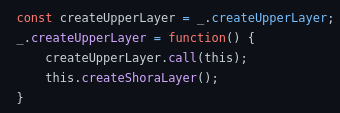
From here simply change all "createUpperLayer" to "createLowerLayer" in this area of code.
*Please make sure the L is capital as js takes that level of precision very seriously.
Now you should have something like this by the end of it.
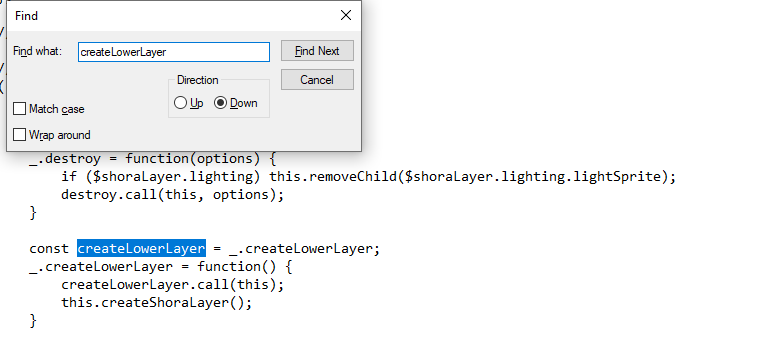
As you can see all I did was simply change createUpperLayer to createLowerLayer within those three lines of text. Once you do this save and close the file and run your game. If you have an image that was originally darkened it should now not be affected.
When you open up the plugin page You'll notice 4 settings
[Game Settings] [Map Default] [Lights: Default] [Lights: Custom]
For now I will only talk about the first two. As I feel like I spent too much time on this post already lol.
[Game Settings]
The parameters are pretty easy to understand. You set the range of your preferred Region ID numbers and if you have the latest version of Shora Lighting you can also place roof Region ID's or Ignore Shadow Region ID's.
[Map Default]
Default Ambient is as the name suggests the default Ambient shade the plugin will show as you start the game. It uses hex numbers so if you don't know any hex numbers by heart simply go to this website
https://www.color-hex.com/ and use their cursor controlled color chart. Any color you would want is broken down in hex numbers so you can apply it to your game. If you want your game to start off with no shading I recommend changing this parameter to #ffffff
Default Shadow Ambient This allows you to adjust the shadow itself. For example if you feel like a shadow in a certain map should be darker than usual [Let's say you wish to hide a monster in a corner] Then this setting will adjust that. Or if You wish the shadows wouldnt be so dramatically dark then you can also brighten them. Its an incredibly hand feature that can benefit the game creator quite a bit.
Default Top Block Ambient If you understand Default shadow ambient then this should also make sense to you. This parameter allows you to adjust the level of intensity of the shadow on the top of your wall. Again very useful for many creative ideas.
