Virtual Buttons and DPad

● ARCHIVED · READ-ONLY
Started by Aloe Guvner 229 posts Page 1 of 12 View original ↗
  1. Virtual Buttons and DPad
    by Aloe Guvner
    Download Link

    Note: This plugin is not under active maintenance.

    Background:
    This plugin focuses on improving the user interface for mobile games created in RPG Maker MV, by allowing the developer to have virtual buttons on the screen that interact with touch input.

    The emphasis is on maximum flexibility for the developer, you can add as many or as few buttons as you want to the screen, and you can add these buttons on whichever screens you would like (i.e. map, menu, credits, title, etc.).


    Functionality:
    This plugin can create 3 different types of buttons:

    1.) Directional Pad
    • A single picture which is used for up, left, right, and down movement (also support diagonal movement when combined with a Diagonal Movement plugin).
    • You control what scenes the DPad appears in.
    • This button is optional.
    2.) Key buttons
    • These buttons can be used to represent any key. Common keys to use would be "ok" , "escape", "pagedown", "pageup".
    • These can be any key, and there can be as many or as few as the developer would like, and you control what scenes they appear in.
    • Buttons can run Common Events.
    • You can also write custom code that will be run when the button is pressed!
    • You may specify the type of input this button responds to:
      • Triggered: Execute once when pressed (default)
      • Pressed: Execute every frame while pressed
      • Repeated: After 24 frames, execute every 6 frames while pressed
      • Long Pressed: After 24 frames, execute every frame while pressed
      • Released: Execute once when button is released
    3.) Control button
    • The control button, if pressed, will collapse and hide all other buttons on the screen.
    • If pressed again, it will expand and show all other buttons on the screen.
    • This allows the player to decide between using the virtual buttons or the standard touch input.
    • The scenes that this button appears in can be defined.
    • This button is optional.
    Use Cases and Screenshots:

    {clearly placeholder art below :D }
    Use Case example #1
    This example uses the DPad and two Key Buttons ("ok" and "escape") to put simple keyboard controls as virtual buttons on the map screen (Scene_Map).

    KeyboardImitation.png

    Use Case example #2
    This example uses buttons with the functionality of "pageup" and "pagedown" in the status screen. These buttons can be put in whichever screen you like. Page Up and Page Down move between actors in the menu, so this would make sense to go in the Status, Equip, and Skill screens (Scene_Status, Scene_Equip, Scene_Skill).

    NewMenuButtons.png

    Use Case example #3
    A virtual button can call custom Javascript code. If you are familiar with the engine, this can be extremely flexible and powerful.
    In this simple use case, the item screen is opened by pressing the button.
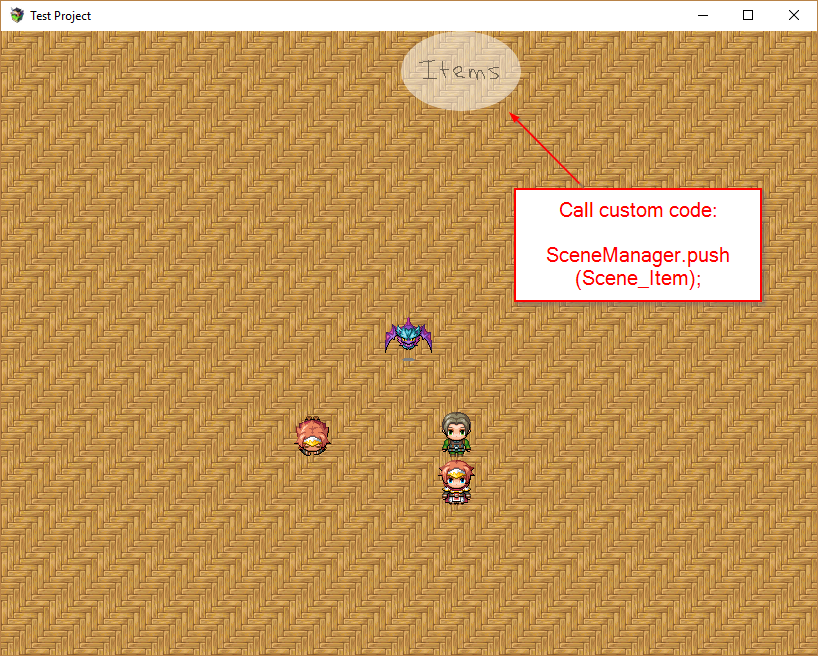
    2018-05-14 19_08_48-Test Project.png

    Setup:
    The setup requires a new folder to be created within the img folder of the project. This folder must be named "VirtualButtons".

    Put all virtual button images in this folder, and then they may be accessed in the plugin parameters.

    Plugin Commands:
    * All plugin commands begin with VirtualButtons (MobileUI is also valid, for backwards-compatibility).
    * All plugin commands are not case sensitive (i.e. "DPad" is the same as "dpad")
    • hide
      • Description: hides the specified button
      • Allowed arguments:
        • DPad
        • Any key button defined by you
        • Control
        • All
      • Examples:
        • VirtualButtons hide DPad
        • virtualbuttons hide Ok
        • MobileUI hide PageDown
    • show
      • Description: shows the specified button
      • Allowed arguments:
        • DPad
        • Any key button defined by you
        • Control
        • All
      • Examples:
        • VirtualButtons show DPad
        • virtualbuttons show Ok
        • MobileUI show PageDown
    • opacity
      • Description: change the opacity of a button
      • Allowed arguments:
        • DPad
        • Any key button defined by you
        • Control
        • All
      • Examples:
        • VirtualButtons opacity dpad 100
        • VirtualButtons opacity all 50

    Terms of Use:
    Free for use in commercial or non-commercial projects.
    Credits required to: Aloe Guvner

    Version History:
    • v2.0.1 (May 13 2019)
      • Fix bug where DPad input wasn't cleared in menus
    • v2.0.0 (May 4 2019)
      • Clears input state on transfer to mitigate stuck DPad input bug
      • Improves clearing of input state each frame to mitigate bug
      • Buttons hidden via plugin command will stay hidden until the show plugin command
      • Key buttons can trigger common events
      • Option to use a "hot" image that shows when the button is pressed
      • Delay parameter to fade-in
      • Plugin command option to show all buttons
      • Plugin command option to hide all buttons
      • Plugin command to change button opacity
      • Add plugin parameter to toggle whether the buttons are hidden during dialogue
      • Fix bug where the DPad would not clear the direction after a parallel event checking for a input direction triggered a Show Choices event command
    • v1.4.0 (December 13 2018)
      • Added ability to configure which buttons are affected by the "control" button
      • Can be used to create dynamic menus
    • v1.3.1 (October 30 2018)
      • Added a parameter to control whether diagonal movement is detected as a possible fix for a hard to reproduce movement bug.
    • v1.3.0 (September 27 2018)
      • Added a parameter to choose to disable the normal touch input on any chosen scene. The only touch input enabled on these scenes is the virtual buttons.
    • v1.2.3 (September 27 2018)
      • Fixed a bug where buttons that the player had chosen to hide would reappear after a game message
    • v1.2.2 (September 27 2018)
      • Fixed a bug where buttons could be pressed before they were fully visible
    • v1.2.1 (September 27 2018)
      • Added an "instant" feature to hide/show for smoother cutscene transitions
    • v1.2.0 (August 26 2018)
      • Added ability to vibrate when button is pressed
    • v1.1.0 (June 27 2018)
      • Fixed bug with awkward player movement on the DPad
      • Added ability to specify the type of touch input on key buttons
    • v1.0.3 (May 14 2018)
      • Added ability to execute custom Javascript code when a key button is pressed
    • v1.0.2 (May 9 2018)
      • Added ability to play a sound effect when a button is pressed.
      • Fixed a bug where the parameters weren't read correctly due to plugin name change
      • Fixed a bug where the control button didn't hide the dpad properly
    • v1.0.1 (May 8 2018)
      • Added a version compatible with MV earlier than 1.6.0 using Babel.js
    • v1.0.0 (April 17 2018)
      • Initial release

    Download Link
  2. I haven't got a chance to test this at all, but if it works as advertised, this plugin deserves a lot more credit than it's so far received.

    I look forward to using it in late 2022 when my project is ready for a mobile release. XD
  3. Obrigado, eu vou usá-lo, eu vou creditar isso.
  4. @Warrior_Corporation This is an English language site. All public posts must be in English and only in English. Please edit your post and translate it. You can use Google Translate if necessary.
  5. This plugin looks wonderful. Any chance to make it compatible with 1.5.2 mv version?
  6. So the reason it won't work on MV versions earlier than 1.6.0 is that I wrote the plugin using features and syntax from the 2015 standard of Javascript. Versions of MV earlier than 1.6.0 don't support the 2015 standard, they only support an earlier standard (from 2009). I always try to use new features, and sometimes that means upgrades are needed to use it. I'm pleased with MV version 1.6.1, they fixed all the bugs from version 1.6.0 and kept all of the improvements.

    Now, I've heard that there is a way to transpile the Javascript to work on older engines for backwards-compatibility, so if I find some time I might try to figure out how to do that.
  7. That's great. By the way, does this plugin work in sub menus, for example; during battle scene, can i config some up/down arrows to navigate the items menu, skills menu, or maybe back buttons, etc.?
  8. Not the way it is designed currently, unfortunately.

    I was trying to balance flexibility and power with trying to keep the parameters as simple as possible, so I decided to make the buttons customizable for each scene (Scene_Battle, Scene_Title, Scene_Equip, Scene_Map, Scene_Status, etc.), but I didn't include anything for sub-menus because the possibilities, especially with anybody's custom menu, became nearly endless :blush:

    Of course the buttons will work fine, but they would be there for the entire Scene_Battle, not just part of it.

    There is a way to have buttons only for certain windows, but it would require you to dive through the code and show/hide these buttons as appropriate.

    For example, in the battle, this part shows the item window:

    Code:
    Scene_Battle.prototype.commandItem = function() {
       this._itemWindow.refresh();
       this._itemWindow.show();
       this._itemWindow.activate();
    };

    You would need to add something to also show the buttons you have configured:

    Code:
    Scene_Battle.prototype.commandItem = function() {
       this._itemWindow.refresh();
       this._itemWindow.show();
       this._itemWindow.activate();
    
       this._keyButtons.up.show(); // <-- new
       this._keyButtons.down.show(); // <-- new
    };
    (Assuming you configured an "Up" and a "Down" button for the Scene_Battle)

    Then you'd have to do the same thing for any window you wanted to show those buttons, as well as hide the buttons when the window was hidden. It would take some work, but it's possible in the end.
  9. Update!

    Added a version that should work for older versions of MV (older than v1.6.0) by using the Babel transpiler.
  10. Update!

    Added the ability to play a Sound Effect when the button is pressed. This can be managed from the Plugin Parameters.
    Note that a Sound Effect might already play (for example, pressing Escape from the map already plays a Sound Effect while opening the menu).
    This is more for other scenarios where the buttons are triggering something that doesn't already have a Sound Effect assigned.

    Additionally, included some bug fixes.
  11. I can confirm this plugin works perfectly on Rpg mv 1.5.2, (only tested the key button configs though)

    Great job by Aloe, allowing the plugin to be used in older versions.
    Congratulations!
  12. Awesome, but it doesn't work on versions prior to the new plugin manager, because param structs won't show.
  13. You are correct - I got RPG Maker after the new plugin manager, so I always forget that it changed. I updated the post to clarify. Thanks!
  14. Thank you for this plugin. I'm using Key Button Settings:

    Name: Escape
    Input Code: Escape
    Image: Escape
    Scenes: Scene_Save, Scene_Load
    X: 1
    Y: 1

    My image is 82x52, but it's not showing up in the save menu and no matter where I click I can't exit the save menu. I can use Esc key to exit, though.
  15. Hmmm that's weird, I tested that specific scenario and it worked fine for me :/

    Can you add a few more pieces of info to try to help debug?

    MV Version:
    Version of plugin
    (1.5.0+ or 1.6.0+?):
    Screenshot of button parameters:
    Screenshot of console during save scene
    (press F8 to open... any errors?)
    Try placing this plugin below all others?:
    Screenshot of Plugin Manager
    (maybe some incompatibilities I can look into?):

    One more thing - change the Input Code to "escape" (with a lowercase e), but that's not related to your problem of the button not appearing.
  16. Aloe Guvner said:
    Hmmm that's weird, I tested that specific scenario and it worked fine for me :/

    Can you add a few more pieces of info to try to help debug?

    MV Version:
    Version of plugin
    (1.5.0+ or 1.6.0+?):
    Screenshot of button parameters:
    Screenshot of console during save scene
    (press F8 to open... any errors?)
    Try placing this plugin below all others?:
    Screenshot of Plugin Manager
    (maybe some incompatibilities I can look into?):

    One more thing - change the Input Code to "escape" (with a lowercase e), but that's not related to your problem of the button not appearing.

    Thank you!

    MV 1.5.2
    Plugin v1.0.2
    Spoiler
    Capture.PNG Capture2.PNG Capture3.PNG
  17. OK, your parameters are good. The problem is the error message from the console, all it means is you need to use the other link instead.
    The version which is compatible with MV v1.5.0+, not the one for v1.6.0+, switch those and you will be good to go :smile:
  18. Aloe Guvner said:
    OK, your parameters are good. The problem is the error message from the console, all it means is you need to use the other link instead.
    The version which is compatible with MV v1.5.0+, not the one for v1.6.0+, switch those and you will be good to go :smile:

    Thank you, it does work now :)
  19. Update!

    New feature added where you can now run your own Javascript code when a button is pressed!
  20. I installed it, but I can't show any buttons on the 1.51. What's the problem?
    upload_2018-5-22_10-17-36.png
    upload_2018-5-22_10-17-58.png
    upload_2018-5-22_10-18-18.png
    upload_2018-5-22_10-17-1.png