Step 1: Create your blinking images.
To keep the size down, I recommend having the eyes on their own, so you can just layer them ontop of your bust graphic, rather than using the full image each time.
E.g.
My files
The images are all the same size, so when called in-game, it'll fit ontop of Dilara's bust without any adjustments.
You can have as many frames as you'd like, but I'd recommend having 3 (open eyes, half-open eyes and closed eyes.) To keep it simple for this tut, I'm only going to use two.
Step 2: Showing the bust in game.
Set up your first event. Use a "Show picture" command to show the bust. By default, all images are drawn behind the textbox, so the only thing you have to edit is where the picture is located.
Using a show picture command
PROTIP FOR MV/VX ACE: Use an picture positing utility to easily find the co-ordinates of your picture. Grab it here: MV VX Ace
Add your show text commands and anything else you want in your cutscene to this event.
Step 3: Blink Event
Create a new event and set the trigger to parallel. Use the show picture command to show blinking animation. Make sure your eyes use a different picture ID number to your bust.
Blinking Event
PROTIP: If you're making several cutscenes with the same characters, make this event in a common event instead, to save you from having to re-add this every scene.
To control when the eyes will appear, set a condition on this event, eg a switch. In your first event with all the text, set your switch to be on, and when the cut scene is over, set it to turn off to remove the eyes.
And, that's all! Hope it helped a little! It's a simple but powerful way to bring life to your characters. You can also use this method to create talking mouths, animated expressions and whatever else you can imagine.
The result
Extras:
Why is my image 'flickering' between blinks?
Spoiler
RPG Maker loads each image when they appear for the first time, so you might notice a little gap where your image is missing, before it shows up. To avoid this problem, use a script or plugin to load all your images before they appear. For MV, I recommend using YSP-Preloader which lets you load the images either all before the title screen, or as you enter a new map.
How can I create a smooth transition/fade in the bust?
Spoiler
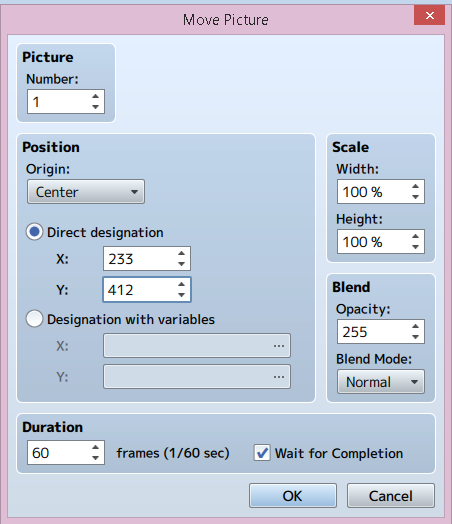
You can do this by creating using a move picture command. Show your bust at Opacity 0, then use the move picture command and change it back to 255. You can adjust the duration of the fade to make it short and sweet, or smooth and slow. Just remember to do the same with your eyes, else your bust will fade in eyeless!
For MV users, you can make life easier by grouping images together. You'll need this plugin by King Gerar. With it, you can group multiple picture IDs together using a plugin command, and then you'll only need one move picture command to control them all. It ensures your pictures all move together, and will make life easier if you need to go back and make adjustments!
For MV users, you can make life easier by grouping images together. You'll need this plugin by King Gerar. With it, you can group multiple picture IDs together using a plugin command, and then you'll only need one move picture command to control them all. It ensures your pictures all move together, and will make life easier if you need to go back and make adjustments!
[For MV] This is cool, but what about talking animations?
Spoiler
In order to time animations to the message window, you'll need a plugin. This one by Astfgl66 is great for bust animations, and so much more! Check out the video I've made in the thread for a demo and tutorial on how to use it.
Where did you get the pictures in your examples?
Spoiler
The image is from MV's cover art pack, a paid dlc, and the blinking effect is something I made very quickly using photoshop.


