MV - [SOLVED] Terrax Lighting: Adjusting light radiusgrow speed.

● ARCHIVED · READ-ONLY
Started by TheAM-Dol 5 posts View original ↗
  1. Edit: The problem has been solved, however for the few people who may be having the same problem and decide to google search a solution, I wish to provide my answer here:

    Finding an Alternate Solution
    (or in other words: a compromise)
    Originally this post was about trying to extend the lightmask of Terrax Lighting so that it could cover the whole map. Fortunastreet from the Community Lighting thread had suggested expanding the "resolution" of the lightmask through the parameters in the plugin settings. Though I explored this option briefly but didn't seem to get good results from it, I decided to shift my focus towards compromising with the problem.

    If I can't elegantly expand the lightmask, then maybe I could briefly fade the lightmask (disable it) hiding the boundaries of the lightmask when zoomed out, then fade the light mask back in when the camera zooms in.

    This can be executed by using the "light radiusgrow #xxxxxx" plugin command, and assigning the new radius to be much larger than the light mask. This effectively creates a gentle fade out as the radius enlarges, removing the light mask. Then when the camera zooms in, I also add the plugin command that returns the radius back to normal, which effectively returns the light mask as it once was.

    The problem?
    While this functionality is built into Terrax Lighting and Community Lighting, the speed at which the operation (growing or shrinking) is performed is...slow. Like...really, really, really slow.
    So my new mission was to find out how to make the radiusgrow operation move faster. I'm a coding dummy, and this took a long time for me to figure out. (I am sure anyone with even mild understanding of Javascript could have figured this out really quick, but unfortunately I had to decipher these moonrunes myself. Yes, I'm a little bit salty that this actually had such an easy solution to it that no one took the time to help me, but I'll be a bitter crotchety old man about it some other time...)

    The Answer:
    You will need to open TerraxLighting.js plugin in an editor. I am using Notepad++ as my IDE.
    On line 634 is the answer to the problem: Change the default value of 500 to a number lower to make it move faster or higher to make it move slower.
    The code reads:
    Code:
    lightgrow_speed = (Math.abs(newradius - player_radius)) / 500;
    Code.PNG
    If you don't care for lengthy explanations, then that's it, problem solved! Have a nice day!
    LightMaskFixed.gif

    Why?
    The reason this was confusing to me, as a coding dummy, was because of the declared variable
    Code:
    var lightgrow_speed = 0.0
    on line 624. I would slam that value up to 999999, or -999999 and nothing would change. Why?
    Because the variable is only simply being declared here, and is set with a default value that will get overrided later in the code. I feel so dumb not realizing it before. Now that we know that, it's so easy to see when the variable is called later in the script on line 634, we are assigning it's new value - the value that will actually be used in the game.
    And there is your programming lesson for the day. If you too are a coding dummy like myself, then likely you learned something new today! Congratulations.

    My original post has been stuffed into this spoiler tag. Feel free to open it to see exciting gifs, and even more gifs have been posted below!


    Original Post
    Hello,
    Here's a tough one that I wonder if I will get an answer for or if this is another thing I'm going to have to commission someone to fix :rswt

    So, for one of my puzzles, the player can control the location of a platform. For quality of life, I thought it effective to zoom out the map so the player can see the possible locations for the platform. I downloaded SRD's Camera Core, but ran into a problem with my lighting plugin, Terrax Lighting. Let's see if you notice the problem here...
    Here's a gif with a special guest appearance from the Nvidia Geforce Experience (thanks Nvidia...)
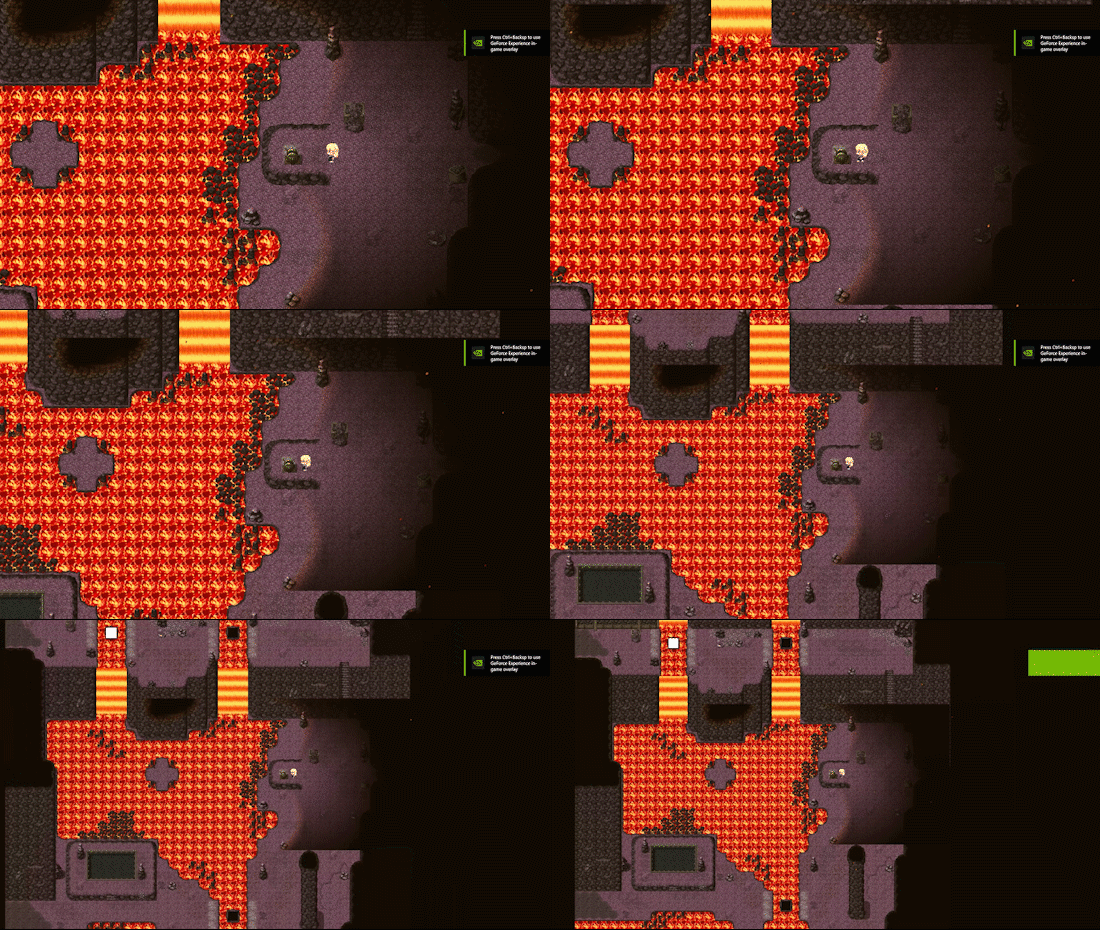
    BoundariesWithNvidia.gif
    I am aware that Terrax is outdated and now there is the Community Lighting plugin to take its place, supposedly with backwards compatibility, but after upgrading to the Community Lighting Plugin, I found that the transfer was...not as smooth as the description made it sound, so I wound up going back to Terrax lighting simply due to the amount of work that would need to be completely redone due to the differences in Community Lighting and Terrax.
    That said, I tried switching back to Community Lighting just to see if the lighting mask is either larger or could at least adjust itself according to the camera zoom...however, it too has the same problem.

    If you are still unsure of what the problem is, here's a picture:
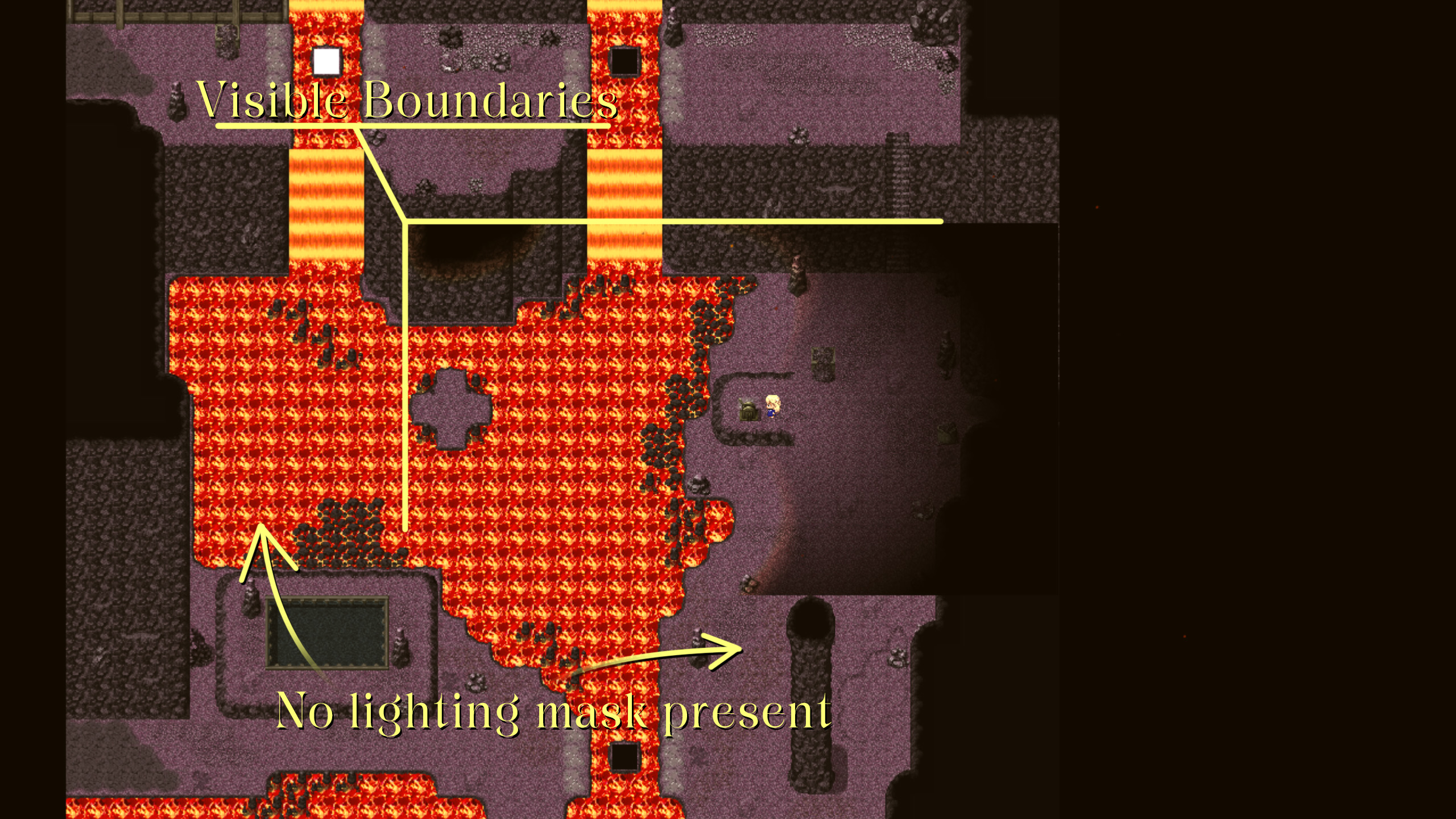
    boundaries.jpg

    Because I would prefer not to have to redo a bunch of lighting work, I'd prefer a solution to this that utilizes Terrax's lighting plugin, but I'm pretty desperate to get this working right, so if there is a lighting plugin that can fix this, I'd be willing to use it.
    I'll also share this thread on the community lighting thread in the event the dev there can add/fix this functionality.

    Your help is appreciated, thank you :LZSsmile:
  2. so far I know, zoom out isn't raelly possible and everything outside
    the map isn't really drawn at that time.

    another workaround possible is show picture on the right spot,
    and scale it down, and maybe back and than remove the image.

    the only downside of this part is that the lava(fall) doesn't animate.

    another workaround is by either using the camera moving it around
    the map to some points and back.

    I dont see another way though.
  3. It does seem to be at extreme zoom levels, some elements of the engine seem to start...uh...breaking down...
    GotWorse.gif
    I tested the zoom plugin at another location in my game. Originally I had test with just a 1.4 zoom, and actually everything (including the weather FX) is totally fine. But out of curiosity, I wanted to see what happens if I pushed it as far as the example I showed above. The example I posted in my original post is 2.4, and in this gif, this is a 2x zoom.

    That's unfortunate...the smooth transition as the player steps up to the switch feels really good and does a great job communicating what is happening...if it were just possible to extend the light mask to at least around that 1.4 range like I could get with the ship, then I could reformat the map - move things in a bit closer.
    Desktop 2022.07.28 - 21.32.10.02.gif
  4. Update:
    Still desperate to get this to work.
    I've been poking and prodding around the Terrax plugin in Notepad++ and
    1) really appreciate all the comments the dev left. Even as a programming dummy, I can at least read where what is. Clearly this guy has a lot of experience and I wish more plugin devs would comment like he does. Which brings me to point 2
    2) I found a couple of things I've been trying to figure out how they work.

    First, and probably the easiest "solution" to this problem might revolve around this code, starting at line 615
    Spoiler
    Code:
    //******************* Light radiusgrow 100 #FFFFFF ************************
                    if (args[0] === 'radiusgrow') {
                        var evid = this._eventId;
                        //Graphics.printError('test',evid);
                        var newradius = Number(args[1]);
                        if (newradius >= 0) {
    
                            var lightgrow_value = $gameVariables.GetRadius();
                            var lightgrow_target = newradius;
                            var lightgrow_speed = 0.0; //default is 0
                            if (args.length >= 4) {
                                if (player_radius > newradius) {
                                    //shrinking. default 0.012
                                    lightgrow_speed = (player_radius * 0.012) / Number(args[4]); //default 4
                                } else {
                                    //growing. default 0.012
                                    lightgrow_speed = (newradius * 0.012) / Number(args[4]); //default 4
                                }
                            } else {
                                lightgrow_speed = (Math.abs(newradius - player_radius)) / 500; //default 500
                            }
    
                            //Graphics.Debug('RADIUS GROW',player_radius+' '+lightgrow_value+' '+lightgrow_target+' '+lightgrow_speed);
    
    
                            $gameVariables.SetRadius(lightgrow_value);
                            $gameVariables.SetRadiusTarget(lightgrow_target);
                            $gameVariables.SetRadiusSpeed(lightgrow_speed);
                        }
                        // player color
                        if (args.length > 2) {
                            playercolor = args[2];
                            var isValidPlayerColor = /(^#[0-9A-F]{6}$)|(^#[0-9A-F]{3}$)/i.test(playercolor);
                            if (!isValidPlayerColor) {
                                playercolor = '#FFFFFF'
                            }
                            $gameVariables.SetPlayerColor(playercolor);
                        }
                        // player brightness
                        if (args.length > 3) {
                            var brightness = 0.0;
                            var b_arg = args[3];
                            if (typeof b_arg != 'undefined') {
                                var key = b_arg.substring(0, 1);
                                if (key == 'b' || key == 'B') {
                                    brightness = Number(b_arg.substring(1)) / 100;
                                    $gameVariables.SetPlayerBrightness(brightness);
                                }
                            }
                        }
    
                    }

    This isn't what I would call a "solution to the problem" but instead a "compromise with the problem". Using the plugin command to grow the light radius, I could just grow the light raidus so large there is effectively no "lighting" effect, thus hiding the problem in the first place. However, there's a problem, which you may see in the gif below

    FadeMask.gif
    (You'll also noticed, when compared to my previous gifs, I have re-arranged the room a little bit to bring the puzzle elements in closer towards the switch so I don't need to zoom out as far.)

    This clip had to be heavily altered in order to crunch it down into the 2MB limit on the forums. This clip was originally 16 seconds long, and that's because the speed at which the light radius grows is at a snail's pace. So what you are actually seeing in the gif is a heavily sped-up version of the actual effect in practice. (to clarify: it's been heavily sped up in my video editor and not through the code itself.)
    That's where the code above comes into play. I've been looking through these lines of text, trying to decipher how to change the speed of the grow effect. The nice comments such as //shrinking, and //growing are appreciated, but after playing with the numbers in this section, I couldn't seem to get it to change it's behavior at all. The grow effect always seems to move at the exact same speed, so I am hoping someone can tell me how to decipher this code...what number do I need to change to make it move faster?
    (For the record, I added the "default [value]" to the comments so I could remember what the values were. Those were not originally part of the code)

    I also say "might" because I've seen references in other parts of the plugin to grow speed, but I believe those other references were part of a compatibility script, and therefore is probably not the "grow" code I am looking for.

    Alternatively, while looking through the code, I found this option at line 867
    Spoiler
    Code:
    //Updates the Lightmask for each frame.
       
        Lightmask.prototype.update = function() {
                  this._updateMask();
        };
       
        //@method _createBitmaps
       
        Lightmask.prototype._createBitmap = function() {
            this._maskBitmap = new Bitmap(maxX+20,maxY);   // one big bitmap to fill the intire screen with black. default X+20, Y(+ nothing)
            var canvas = this._maskBitmap.canvas;             // a bit larger then setting to take care of screenshakes

    I don't really expect anyone to do anything with this code, but I played around with the "new Bitmap(maxX, maxY) and got to to draw a massive black field...with some strange rendering issues, but makes me believe there could be the potential to just outright extend the light mask per the original request of this thread.
    When I was play testing the zoom levels with the ship in a different map, I noticed that the weather effect renders WAY larger than what the camera can see, and thus I am able to zoom the map out partially without breaking things. It's because of this that I believe it may be possible to extend the lightmask, but hell if I know where to even begin in this code to do that...

    One last alternative I found around line 759
    Spoiler
    Code:
    // *********************** EFFECTS *********************
                if (command === 'effect_on_event') {
                    var x1 = 0;
                    var y1 = 0;
                    var evid = -1;
                    for (var i = 0; i < $dataMap.events.length; i++) {
                        if ($dataMap.events[i]) {
                            evid = $dataMap.events[i].id;
                            if (evid == args[0]) {
                                x1 = $dataMap.events[i].x * $gameMap.tileWidth();
                                y1 = $dataMap.events[i].y * $gameMap.tileHeight();
                            }
                        }
                    }
                    // def = radius,color,duration(,keyword,speed)
                    // 0. Radius
                    // 1. Color
                    // 2. Time in Frames
                    // 3. Keyword (optional)   FADEIN FADEOUT FADEBOTH GROW SHRINK GROWSHRINK BIO
                    // 4. Fade/Grow Speed in frames
    The comments at the bottom are the interesting part. Particularly points 3 and 4, where 3 talks about fade in/fade out (I imagine he means the light mask?), and 4 talks about the fade or grow speed in frames. However, I'm too dumb to figure out how to utilize these either as a script call in game or alter the plugin itself to utilize these things. Are they just relics of previous functionality that has been commented out? Or is this a function that has been built into the plugin but isn't mentioned in the help document? If so, how do I use these?
    (But after looking at it further, I believe this is associated with giving projectiles a glow effect, so those 0 - 4 numbers likely won't help me here.)

    So any help on this?
    Either speeding up the "grow" speed of the player radius, or extending the light mask.
  5. This thread is being closed, due to being solved. If for some reason you would like this thread re-opened, please report this post and leave a message why. Thank you.