MV - Community Lighting MV & MZ

● ARCHIVED · READ-ONLY
Started by ImaginaryVillain 1279 posts Page 25 of 64 View original ↗
  1. @Aesica @ImaginaryVillain

    Hi Guys, i've asked this question in the past, i see only a thing and i'm asking for curiosity, again, because i don't understand this.

    If i use normal tint screen to -255 to all (black), the screen will totally cover in this way, of course. Total black.

    tint2.JPG

    But if i do the opposite thing, Tint in white 255 to all, i see this:

    tint.JPG

    And i see the lights under the scene.

    Why do you think the tint do this strange thing? and Black screen works well? :/
  2. @ImaginaryVillain So I am using <cl: DayNight 0> and have all of the proper switches and variables set (switch 2 is to toggle night, Vars 4, 5 and 6 are hours, minutes and seconds, respectively). However, regardless of my settings (initialization forces the time of day to 12:00 noon), it always starts off at night time, even with the switch for night set to "off." Is there any way to control the time of day? Or is it unable to be done in such a way? Thank you!

    EDIT: This is on the MZ version and I have v3.6
  3. The A-ster said:
    @ImaginaryVillain So I am using <cl: DayNight 0> and have all of the proper switches and variables set (switch 2 is to toggle night, Vars 4, 5 and 6 are hours, minutes and seconds, respectively). However, regardless of my settings (initialization forces the time of day to 12:00 noon), it always starts off at night time, even with the switch for night set to "off." Is there any way to control the time of day? Or is it unable to be done in such a way? Thank you!

    EDIT: This is on the MZ version and I have v3.6
    Are you using the switches/variables to set the time? If so, don't do that because they're read-only. The variables are used to easily fetch the current hour, minute, or second and the switch is meant to easily tell whether an hour established in the plugin parameters is intended to be treated as day or night. There's no easy way currently to dynamically set whether an hour is day or night at runtime, but I'll probably fix that in a future patch.

    Anyway, to set the time, you'll want to use the plugin command (Set Time I think) instead.

    DarkSearinox92 said:
    @Aesica @ImaginaryVillain

    Hi Guys, i've asked this question in the past, i see only a thing and i'm asking for curiosity, again, because i don't understand this.

    If i use normal tint screen to -255 to all (black), the screen will totally cover in this way, of course. Total black.

    View attachment 174525

    But if i do the opposite thing, Tint in white 255 to all, i see this:

    View attachment 174526

    And i see the lights under the scene.

    Why do you think the tint do this strange thing? and Black screen works well? :/
    It has to do with how the light layer blends with the main layer, and fixing it is probably more trouble than its worth.
  4. Here's the thing. This plugin places a giant black bitmap over the screen. Then uses the canvas lighter to create a composite of a circular gradient (the light) and the portion of the black bitmap in the area of the event/player. Then it uses canvas source-over to replace that section with the merged version of the two. So what you see as the light is just a merged version of that portion of the black bitmap and the circular gradient.

    So if you use a white screen, you are taking a white bitmap and merging it with the circular gradient of your light. Since your light is much closer to the white, it blends too much with it creating an effect that's not really the illusion of lighting. Which is pretty much what this plugin is doing.

    As for a fix. I don't really believe it's possible without redesigning how this plugin applies lights. I have been considering other options but not going to lie, anything I personally develop for this plugin is driven by use for my game. And at present I don't have much need to completely rework how the lights work in this.
  5. Aesica said:
    Anyway, to set the time, you'll want to use the plugin command (Set Time I think) instead.

    Thank you so much! I was dumb and didn't even bother to look at Plugin Commands, it seems. XD Thank you again!
  6. I only just started with RPG Maker, so I have no idea how to use this plugin. Any help?
  7. @Successboat there is a demo to download (might not be the latest version) but all basics
    are in there on how to use it :)
  8. ShadowDragon said:
    @Successboat there is a demo to download (might not be the latest version) but all basics
    are in there on how to use it :)
    wow i'm stupid :hswt: thanks!
  9. I'm working with the MZ verison now. Previously in MV I would use a plugin command to change the hue of the shadows/dark area to make them not be pitch black. However Plugin commands in genreal seems to be changed in MZ.

    So how would I make the black areas not be pitch black?
  10. Set Tint plugin command should do it
    1610184057161.png
  11. Do you think that i can find a "workaround" for cover the map in total white, with active lights? Not by using normal Tint screen, but in another way. Only asking if you have some ideas. Maybe a function that put in a layer OVER the bitmap, the function for tint the screen? Or something like that?
  12. Have you tried an all-white picture the same size as the game screen?
  13. Aesica said:
    Set Tint plugin command should do it
    View attachment 174843
    I swear that did not come up when I checked last night. But thanks I feel dumb
  14. @DarkSearinox92 I guess the real question is, what are you trying to accomplish? If you added a second layer that wasn't involved with the plugin, it would just be a white screen. If you add one that has the same holes in it, you'd get the white result from earlier as it would just cover the black bitmap.

    If you want the screen tinted, RM's got a built in one that would tint it for you without interfering with this plugin. Or of course you could just place a semi transparent white bitmap over the screen using the built in picture command. That would of course just create a washed out effect.
  15. Hi guys, I need your help again!

    On my latest post I was able to update Terrax Lighting to Community Lighting deleting the note tag key "CL" and disabling Terrax Lighting
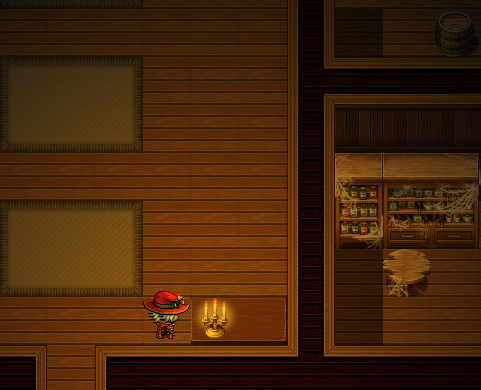
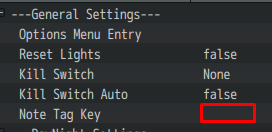
    1610298741040.png
    1610298917915.png
    1610298979346.png

    But today I just noticed it stopped working on all my maps

    1610299014155.png

    Trying to fix it I updated to the latest MV version (v2.4) and disabling some new plugins I added lately, but nothing works.

    Do you have any list of unsupported plugins?

    This is the candle note tag:
    Code:
    Light 400 #FF9900 1

    This is how I turn the candle on:
    Code:
    Light on 1

    I will try disabling more plugins to find which is causing the problem, but any help is welcome, thank you!

    I am using RPG Maker MV Version 1.6.2 from steam.

    --- UPDATE ---

    Some things I tried:

    - I disabled ALL the plugins but Community Lighting
    - Used plugin command: Tint set #000000
    - Used plugin command: Light activate
    - Changed note tag key to "CL" and candle note tag to <CL: Light 250 #ffffff>
    - Changed the plugin order (tried moving Community Lighting to the top and bottom)
  16. ImaginaryVillain said:
    @DarkSearinox92 I guess the real question is, what are you trying to accomplish? If you added a second layer that wasn't involved with the plugin, it would just be a white screen. If you add one that has the same holes in it, you'd get the white result from earlier as it would just cover the black bitmap.

    If you want the screen tinted, RM's got a built in one that would tint it for you without interfering with this plugin. Or of course you could just place a semi transparent white bitmap over the screen using the built in picture command. That would of course just create a washed out effect.

    Wait, maybe we don't understand each other ... Or maybe yes and I'm confused. I just want to get the Tint screen offered by rpg maker to change to 255 (white) by coloring the whole screen OVER the plugin effect, as happens when I set the -255 (Black). I just want a fade to white, but not to black. With black the halos of light are not shown, while with white they are. If I use the plugin tint screen, of course, I don't get the same effect.

    We understood each other? : S Or am I out of phase? XD

    That's why I asked if it was possible to create a white Tint screen that would color the screen above the plugin. Because if I understood correctly, from the previous answers, Tint screen colors the screen but does not cover the lights ... (?)
  17. stramin said:
    Hi guys, I need your help again!

    On my latest post I was able to update Terrax Lighting to Community Lighting deleting the note tag key "CL" and disabling Terrax Lighting

    View attachment 175020
    View attachment 175022
    View attachment 175023

    But today I just noticed it stopped working on all my maps
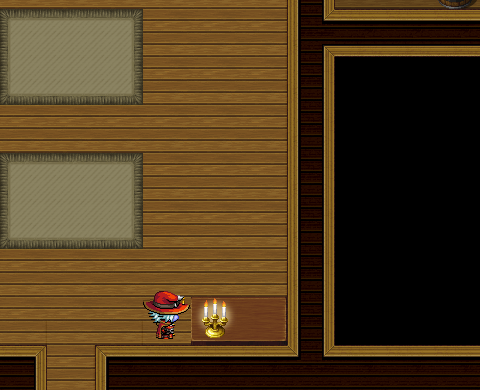
    View attachment 175024

    Trying to fix it I updated to the latest MV version (v2.4) and disabling some new plugins I added lately, but nothing works.

    Do you have any list of unsupported plugins?

    This is the candle note tag:
    Code:
    Light 400 #FF9900 1

    This is how I turn the candle on:
    Code:
    Light on 1

    I will try disabling more plugins to find which is causing the problem, but any help is welcome, thank you!

    I am using RPG Maker MV Version 1.6.2 from steam.

    --- UPDATE ---

    Some things I tried:

    - I disabled ALL the plugins but Community Lighting
    - Used plugin command: Tint set #000000
    - Used plugin command: Light activate
    - Changed note tag key to "CL" and candle note tag to <CL: Light 250 #ffffff>
    - Changed the plugin order (tried moving Community Lighting to the top and bottom)
    A few things:

    1. It worked when you switched from terrax to community originally, right?

    2. Does it work fine again when you switch back to terrax and disable community?
  18. 1. Yes, it worked 2 months ago.

    2. Yes, disabling Community and enabling Terrax make it work again, the following image is the same location but using Terrax Lighting.
    1610319822679.png

    Extra information

    This is how I have the plugin settings:
    1610320066084.png

    I used this link to get the script:
    community_lights/Community_Lighting.js at master · ImaginaryVillain/community_lights
    Edit

    OK, I finally solved the issue!

    I installed Yanfly Options Core, this plugin doesn't show the Community Lighthing option, I had to Disable Yanfly Option Core, write something on the option menu entry setting, launch the game, open options, set Lighthing ON, close the menu, re enable Yanfly Options Core and now Community Lighthing is working again :D
    1610402474285.png
  19. So I tried launching the MZ demo and every time I attempt to play it, i just get a black screen with the retry button.

    Did I do something wrong?
  20. stix45 said:
    So I tried launching the MZ demo and every time I attempt to play it, i just get a black screen with the retry button.

    Did I do something wrong?

    You need to put the demo project file into an existing dummy project, it has no textures for some reason.